


after i upgrade my operating system to win 8 , i suffer from Windows 8 Randomly Freeze and search internet for many days and try different solution until i found this solution which solve my problem and i want to share it with your to safe your time

after i upgrade my operating system to win 8 , i suffer from Windows 8 Randomly Freeze and search internet for many days and try different solution until i found this solution which solve my problem and i want to share it with your to safe your time
Other solutions if the above not succeed
Windows 8 freezes? Here is a fix
When I started to work on my Windows 8 PC today I noticed a strange behavior after updating some apps in the store. The system would freeze occasionally, so that some controls simply were not functioning anymore. I first though this was a desktop freeze, as standard desktop controls like the clicking on buttons, closing of windows or scrolling in the task manager did not work anymore, but it quickly turned out to be more complicated than this. While I was able to switch between the desktop and the start screen of Windows 8, I could not launch start screen applications either.
I first assumed that it had something to do with the store updates, even though I found that hard to believe. Still, after several restarts I decided to run a system restore first, only to find out that the issue was not resolved by it. Strange as it was, I had other options in my arsenal. Below are the things that I tried to fix the freezes that I experienced.
[h=1. System Restore]3[/h]System Restore basically restores a previous system state which should resolve any issues caused by software or system updates. To run a system restore in Windows 8 do the following:
- Use Windows-C to open the Charms bar on the desktop and select Settings > Control Panel from the options.
- Select System and Security there, and then System again
- Select Advanced system settings on the right and switch to System Protection in the window that opens up
- Click on System Restore and select one of the available restore points to restore a previous system state.
- Note that the PC needs to be rebooted as part of the process.
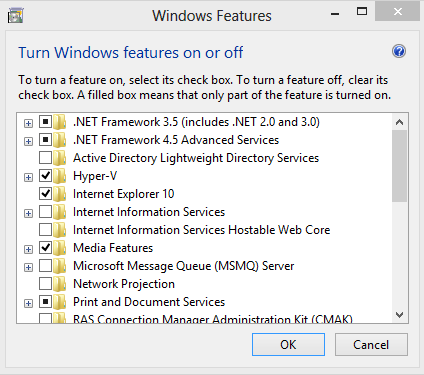
[h=2. Enable Hyper-V]3[/h]I read that his fixed freezes for some users and decided that it was worth a try. To enable Hyper-V do the following:
- Use Windows-C to open the Charms bar on the desktop and select Settings > Control Panel from the options.
- Select Uninstall a Program here.
- Select Turn Windows features on or off on the left sidebar and check the Hyper-V box on the Windows Features window that opens up.
- A restart is required to complete the installation.
[h=3. Update your video card]3[/h]This one should be quite obvious. If a video card update is available try and install the update on the system to see if it resolves the issues that you are experiencing. You may also want to try and experiment with installing a previous version of the video card drive to make sure it is not an issue of the latest driver version.
- Nvidia drivers
- AMD drivers
[h=4. Verify your system files to make sure none are corrupt]3[/h]To verify all system files do the following:
- Press the Windows key to go to the start screen if you are not already there
- Enter cmd
- Right-click the Command Prompt listing there and select Run as administrator from the bottom toolbar.
- Accept the UAC prompt
- Enter sfc /scannow and wait for the results.
[h=5. Sign out and in]3[/h]This is the step that resolved the issue for me. I know, it sounds really strange. To do that do the following:
- Press the Windows key to open the start screen
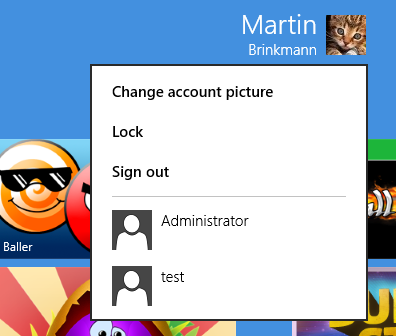
- Right-click your account name and profile picture and select sign out
- Select the account again on the sign in page and log in again
The funny thing is, this is almost the same step that resolved issues that I had when I tried to install Windows Store apps. I also tried the Microsoft Accounts Troubleshooter to see if there was an underlying problem with the account, but that was not fruitful either.
Enjoyed the article?: Then sign-up for our free newsletter or RSS feed to kick off your day with the latest technology news and tips, or share the article with your friends and contacts on Facebook, Twitter or Google+ using the icons below.
 Posting Permissions

 Reply With Quote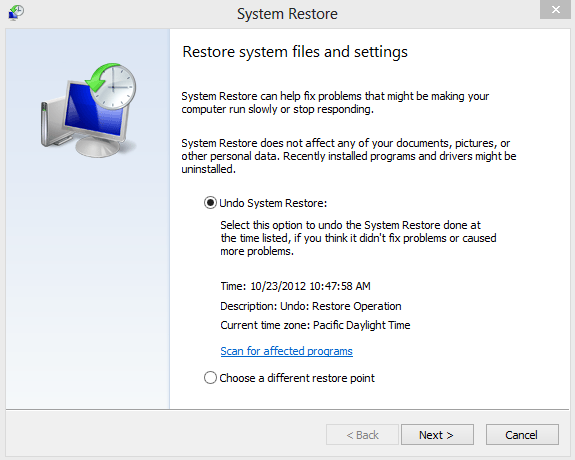

Bookmarks